BARQODE · BARCODE LABEL MAKER

Your products.
Your labels.

Design and print barcode labels with Barqode. Add one product or upload a CSV, arrange your fields, and preview your labels before printing.

Free to use · No account needed · Works in your browser

MADE WITH BARQODE
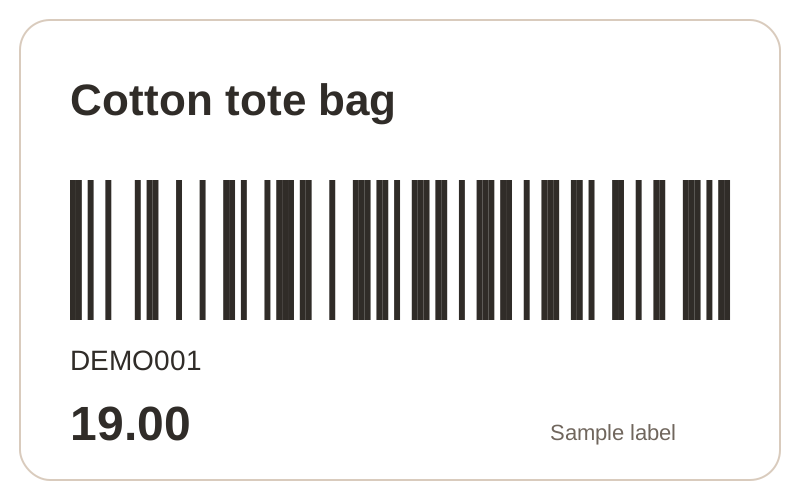
Sample product label with a name, barcode and price

One product or a full CSV. Your layout, ready to print.

BARQODE

Design & print labels

Create labels on this device. Import a CSV, customize your layout, save designs and print. No account needed.

Open Barqode →

BARQ BY BARQODE

Send labels to your shop

Prepare labels on your phone. Send a preview to your shop PC for your salesperson to approve and print. A free shop account connects your devices.

Open Barq →

STOCKLY BY BARQODE · BETA

Turn invoices into products

Read an invoice, review your products and prices, then export for Shopify or design your labels.

Try Stockly →

FROM PRODUCT DETAILS TO PRINT PREVIEW

One label or a batch.

01 / ADD

Bring your products

Enter a product manually, or import a CSV. Match the product name, barcode, price and quantity columns.

Try the sample CSV ↓
02 / DESIGN

Make the label yours

Choose a label size. Move and resize the fields, change fonts and add text. Download your template to reuse it.

03 / PRINT

Check, then print

Choose the products and quantities. Review the preview, match your printer's paper size, then print a test label.

A small task, made simpler.

Replace a missing tag

Add the product's existing code, name and price. Open your saved layout and prepare one replacement.

Get new stock ready

Bring a product list from a spreadsheet as CSV. Select which products need labels and how many copies.

Keep a consistent look

Save a template for your next batch. Adjust it when your label size, prices or product details change.
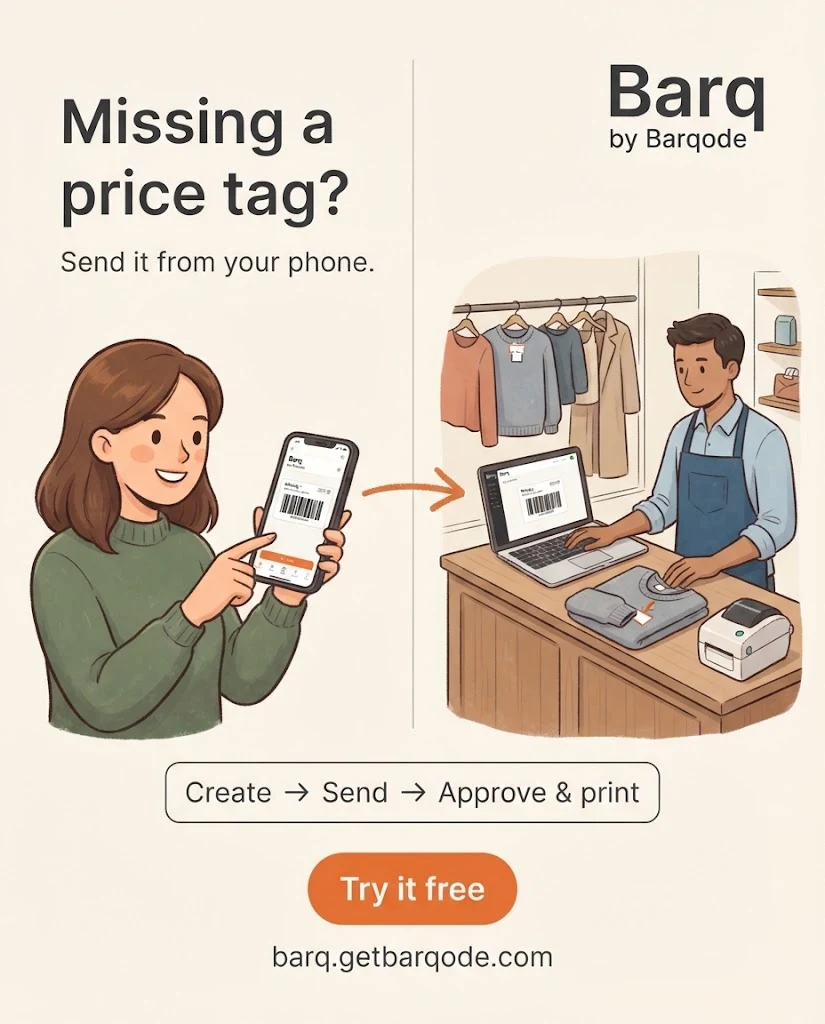
A SEPARATE WORKFLOW · BARQ BY BARQODE

Create on your phone.
Print at your shop.

Prepare labels wherever you are. Your salesperson reviews the preview on the shop PC and prints when ready.

One product or CSVReusable designsReview before printing
  1. Set up your shop. Create an account, confirm your email, and sign in on both devices.
  2. Connect your PC. Open Receive & print on the laptop, click Start receiving, and enter its code on your phone.
  3. Prepare your labels. Add a product or CSV, select fields and quantities, edit your design, then Send preview.
  4. Approve and print. Review on the laptop, click Approve and print, and select your printer in the print window.

Keep the laptop receiver page open and the PC awake. Use the same account on both devices. No desktop download is required for this browser workflow.

44-second guide · Captions on screen
Actual editor screenshots and illustrated steps. No physical print shown.
Barq: create a missing label on your phone, send it to your shop, approve and print
Stockly by Barqode

INVOICE TO PRODUCTS · PUBLIC BETA

From invoice to shelf.

Turn a supplier invoice into a product list, selling prices and labels.

  1. Upload a photo, PDF or spreadsheet.
  2. Review & price your products. Add sizes and codes.
  3. Export or print with Shopify, CSV or the label studio.
Try Stockly →
See how Stockly works · 30 seconds
Captioned illustrated guide with sample products. No sound needed.

Check extracted details before exporting or printing. Drafts save in your browser; uploaded invoices are processed on Stockly servers.

A few things to know.

Are Barq and Barqode free?
Both are currently free to use. Barq requires a shop account and email confirmation to connect your devices. Barqode needs no account.
Where is my product data stored?
Barqode keeps your work in your browser. Barq stores saved designs and submitted print jobs in your private shop workspace so your connected PC can receive them. Download a backup before clearing browser data or switching devices.
Can I use my own label printer?
Barqode uses your browser's print window and printers available to your computer. Set the same label size in the editor and printer, use 100% scale, and turn off margins, headers and footers. Print one label and scan it before a batch. Printer setups vary.
Does Barqode provide retail product numbers?
Barqode turns the codes you enter into barcode images. It does not assign registered retail product identifiers. Use the identifiers appropriate for your products and selling channels.
Can I use it on my phone?
You can open the editor in a browser on your phone. Printing options depend on the phone and printer. For the first print test, use the computer connected to your label printer.
Where is the Windows app?
The existing Windows app is still available: download or check updates.

START WITH ONE PRODUCT

Make your next label.

Open Barqode →

Got stuck or missing a feature? Tell us what you need.